SVG to STL Converter
Extrude SVG vector paths from Adobe Illustrator, Inkscape, or Figma into sharp, watertight 3D STL geometry without raster pixelation.
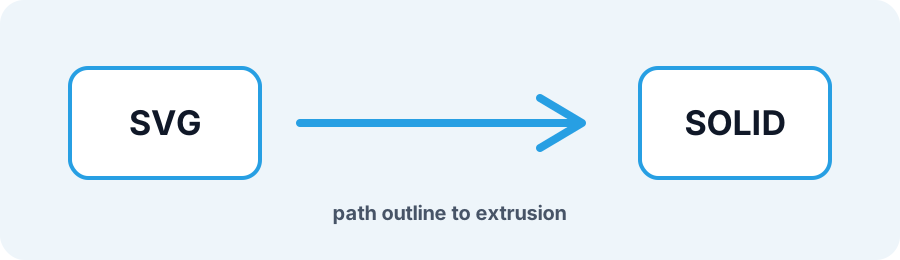
Technical principle
Convert text and strokes to closed paths in your vector editor before uploading. The exporter turns the source into a bounded triangle mesh and exposes the selected units, tessellation, or image settings before download. Review the bounding box,…
Parameters at a glance
| Parameter | Value | Why it matters |
|---|---|---|
| Input format | .SVG | Accepted source file extension. |
| Output format | STL | Geometry or archive produced by this route. |
| File size | Up to 250 MB | Upload guardrail before parsing or conversion. |
| Mesh review | Preview, normals, open edges | Check geometry before download or slicing. |
| Extrusion thickness | Adjustable | Controls the generated geometry. |
Why SVG Vectors Produce Clean 3D Printed Logos and Signs
SVG defines shapes with mathematical paths rather than square pixels. The converter tessellates supported contours into clean sidewalls and triangulated caps for signs, cookie cutters, badges, and custom stencils.
Frequently Asked Questions
Why is text missing after SVG to STL conversion?
Dynamic text relies on local fonts. Convert text to paths or outlines in Illustrator, Inkscape, or Figma before uploading.
How are holes inside letters handled?
Compound paths and supported winding rules subtract inner cutouts so letters such as O and A can extrude correctly.
Can I import the STL into Fusion 360 or Tinkercad?
Yes. Check the Binary STL in your slicer, Tinkercad, Fusion 360, or Blender before manufacturing.